
Hidden AI phone features: stop ignoring your smartphone’s true power

The smartphone in your hand is far more capable than you probably realise. While major manufacturers are promoting their latest AI breakthroughs, new data reveals that 91% of smartphone users are not utlising the powerful, "hidden" AI tools already built into their current devices.
This disconnect means there are potentially millions of Brits missing out on features that can boost productivity, enhance photos and even make their phone battery last longer. We've examined the major AI gaps and gathered a list of the most valuable, often-ignored features on your smartphone to help you unlock its full potential.
Explore our dedicated AI phone collection, where you’ll find a variety of handsets from top brands such as Apple, Google and more.
Magic Eraser / Clean-Up tool
The Magic Eraser is the ultimate example of the usage gap, with 34% of users knowing the feature exists but only 9% using it regularly.
This generative AI editing tool lets you circle and remove unwanted objects, people or text from any photo with a tap of a button. The AI naturally fills the empty space with a generated background and requires zero editing skills. It can quite literally turn a broken image into a perfect memory with a couple of taps, proving you don't need specific photo editing apps to achieve amazing results.

How to activate:
• Android (Google/Samsung): Open Google Photos > Select a Photo > Edit > Tools > Magic Eraser.
• iOS (iPhone): > Open a Photo > Edit > Clean Up
Live text / Google Lens
This feature seamlessly bridges the gap between the physical and digital world, potentially saving you a lot of time.
Use your camera or photo gallery to promptly recognise, copy, translate or search text found in the real world. Interestingly, only 20% of users are aware of this type of feature, despite its effectiveness in preventing annoying manual transcription errors and speeding up several tasks, such as copying text from an image into a separate document; ideal for students.

How to activate:
• iOS (iPhone): Open a photo or the Camera > Text Selection (usually a square with three lines) that appears over text.
• Android (Samsung/Google): Open the Camera or Google Photos > Lens (usually a square with dots).
Keyboard trackpad mode
Only 22% of users knew this feature existed, making it one of the most truly hidden features for daily messaging and email editing.
This tool removes the extremely irritating process of constantly tapping to position your cursor where you want it to be. Press and hold the spacebar on your on-screen keyboard to instantly change the entire space into a precise cursor trackpad, allowing you to easily navigate and correct text. This powerful hack is a fundamental productivity cheat to have in your arsenal.
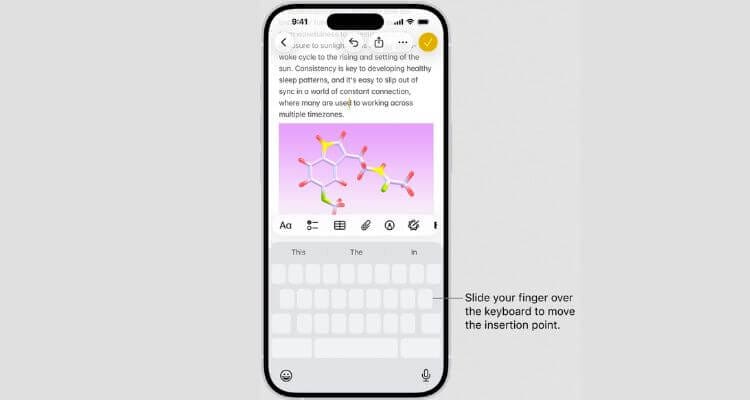
How to activate:
• iOS (iPhone): Press and hold the Spacebar on the native keyboard.
• Android (Samsung/Google): Press and hold the Spacebar on the Gboard or native Samsung keyboard.
Adaptive battery optimisation
This is the silent, foundational AI feature that every phone owner benefits from, yet almost no one knows it's happening.
61% of older users dismiss new AI features as gimmicks, however, it is this AI feature that is quietly extending their battery life. Adaptive battery optimisation uses machine learning to intelligently restrict background activity, ensuring that vital battery power is going where is needed most.
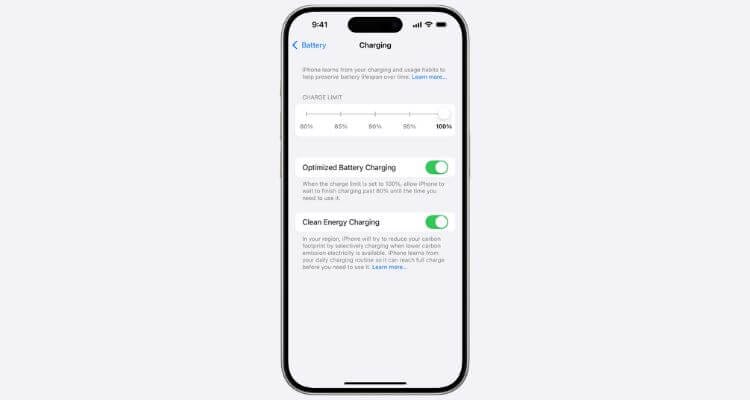
How to activate:
• iOS (iPhone): Go to Settings Battery > Battery Health & Charging > Ensure Optimised Battery Charging is on.
• Android (Samsung/Google): Go to Settings > Battery Adaptive Preferences > Toggle 'Adaptive Battery' on.
Real-time photo coaching
Only 18% of people believe their smartphone is capable of real-time coaching to improve their photos as they take them, making this the most hidden feature we found across all users. It's essentially having your very own professional photographer hidden in your camera app.
The Camera Coach AI feature on Pixel phones is an example of this, which analyses the scene before you press the shutter button and provides refined, immediate tips to improve your shot. It can suggest things like adjusting your light source, moving closer or telling you to straighten the horizon.
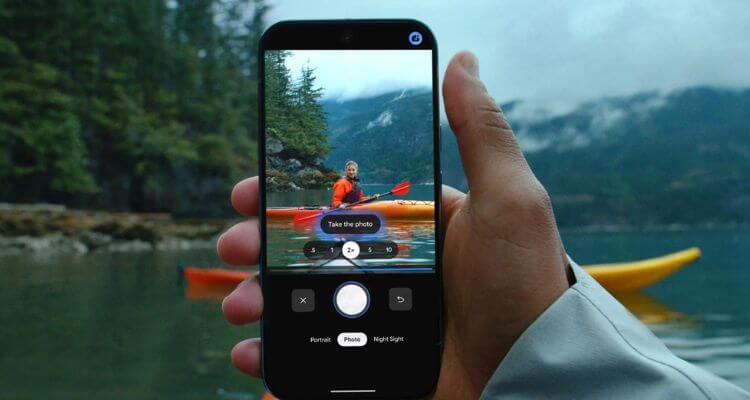
How to activate (This feature is often on by default and integrated into the camera's general settings):
• iOS (iPhone): The coaching tips often appear automatically in the Camera app. Ensure you have the latest iOS and check Settings > Camera for options like 'Composition' or 'Scene Detection' which may be related.
• Android (Samsung/Google): For Google Pixel, check Camera app > Settings > Advanced for 'Framing Hints' or 'Google Lens Suggestions'. On Pixel 10 handsets, open the Camera app and look for the camera/star icon in the top corner to use Camera Coach. For Samsung, check Camera app > Settings > Scene Optimiser (ensure it's on).
With a little more know-how of these AI features, you can start tapping into the true potential of your smartphone. If you want to learn more about next-generation AI, explore our guides on the different AI suites across varying devices from Apple, Google and Samsung.