
How To Factory Reset Your iPhone
Is your iPhone experiencing issues, or you want to sell your phone and need to remove its data? Knowing how to factory reset an iPhone – also known as a hard reset - can help you wipe it clean and get it ready to sell on.
In our step-by-step guide, we’ll explain how to factory reset your iPhone from start to finish, so you can safely and easily clear your Apple device in no time.
If you’re looking to pick up a new iPhone for yourself after a reset, or for someone else, you’ll find a wide variety of options in our extensive iPhone collection.
Why factory reset an iPhone?
There are several reasons as to why factory resetting is useful:
• If you're ready for an upgrade and wish to sell your old phone, it's advisable to wipe your iPhone first and reset it to factory settings. It's a requirement for some mobile recycling processes, such as our Sell My Phone service, and it'll make sure none of your contacts, photos, downloaded apps and saved bank cards are passed on
• If you plan on giving your phone to a friend or family member, it'll help to provide that new-phone experience too, rather than needing to delete and alter the iPhone themselves
What does a factory reset remove?
A factory reset will remove the following from your iPhone:
• Photos and videos
• Messages
• Accounts
• Contacts
• Music
• Passwords
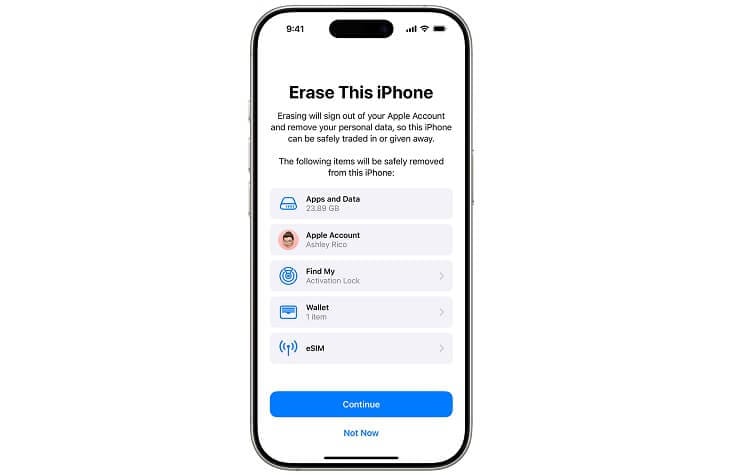
Any data stored on the Cloud or SD cards won’t be removed in the factory reset. If you have any SD cards in your device and are planning to sell or give away your iPhone, ensure these are removed before your phone goes to its new home.
Things to do before factory resetting your iPhone
Back up your iPhone’s data
Before factory resetting your iPhone, you need to make sure your current data is backed up, particularly if you’re wanting to move to a new iPhone while retaining important data.
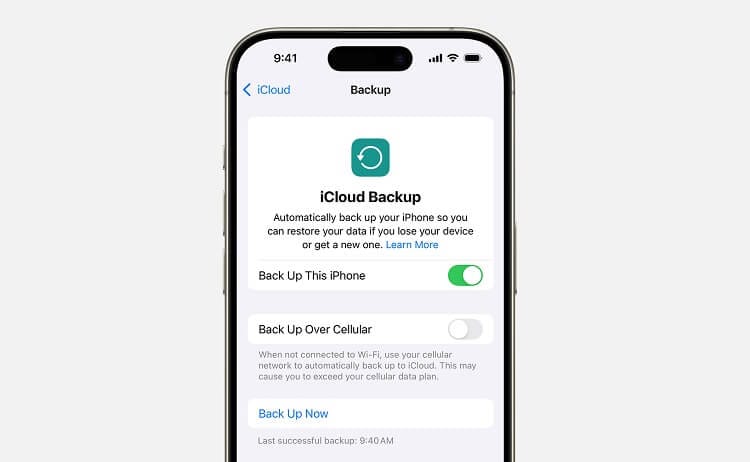
Our data backup guide will help you maintain any existing data before you perform a factory reset of your iPhone. Make sure to connect to a Wi-Fi network so you don’t use up mobile data.
Have your Apple ID handy
You’ll need your Apple ID and passcode when performing a factory reset, so have these to hand before you begin.
Sign out of your accounts & unpair Bluetooth devices
Ensure you’re signed out of your accounts before starting the reset, and unpair any Bluetooth devices. Also delete any bank cards in your virtual wallet.
Turn off Find My iPhone
Signing out of your accounts helps prevent any unauthorised use of the Find My iPhone feature. Make sure you’ve also turned this feature off by going to Settings > [Your Name] > Find My > Find My iPhone.
Factory resetting your iPhone
Once your data has been backed up, you can reset your iPhone to factory settings on the device itself or via your computer.
Reset on your iPhone
- Open the Settings menu
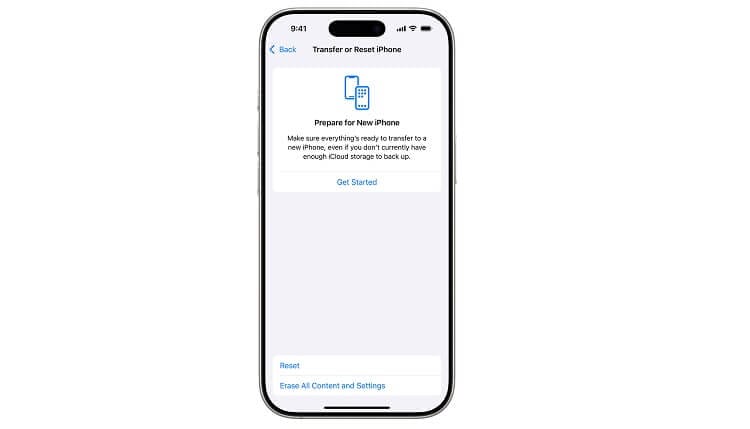
- Tap General >Transfer or Reset iPhone
- Select Reset > Erase All Content and Settings > Continue
- Enter your Apple ID and password if prompted
- Confirm that you are happy to erase your content and settings
The iPhone’s screen will turn off and start the reset process. After a few minutes, the screen will turn back on to confirm the reset has been completed.
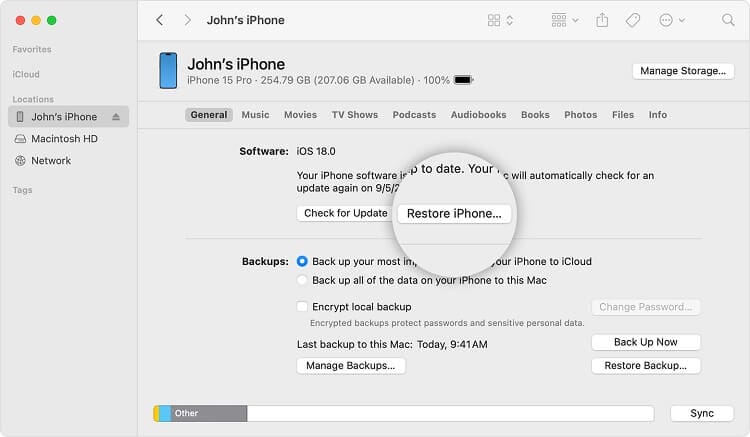
Reset on your computer
- Double-check that the latest version of iTunes has been installed on your computer
- Turn off ‘Find My Friends’ on your phone. Select 'Settings', click on your name and choose 'iCloud'. Then, scroll until you reach 'Find My Friends' and select 'Off'
- Open iTunes and connect your iPhone to the computer with the USB cable supplied with your device
- Follow any on-screen steps that appear, such as a passcode request or a 'Trust This Computer' notification
- Click on your iPhone when it appears and choose 'Summary'
- Press 'Restore' and then confirm by clicking 'Restore' once more in the pop-up window
- That's it! Your device will be reset with the latest iOS software upon restart
Reset without a passcode
If you enter your iPhone’s passcode incorrectly six times and get locked out, or you don’t know your passcode, you can still factory reset your device. For iPhone 8 or later models, follow the below steps:
-
Turn off your iPhone and connect it to a computer
-
Hold and release the ‘Volume Up’ button, do the same with the ‘Volume Down' button, followed by the ‘Side’ button
-
Once you see the Recovery Mode screen, open iTunes on your computer
-
Find your iPhone on the computer and select ‘Restore’ when the message appears
-
Leave your iPhone connected until the factory reset is complete
After following these steps, your iPhone will be back to its factory state. If you find that your device frequently runs out of storage space and you don’t want to reset again, there are several ways you can make room for apps, photos and more.