
How To Get Deleted Messages Back On An iPhone
We’ve all been there; you’ve deleted a message but need to revisit what was said. Thankfully, there are a few different ways you can get your deleted messages back on an iPhone without much hassle.
Our smartphone experts are here to show you how this is done. If you’re also on the hunt for a new iPhone, have a look through our dedicated iPhone collection.
Why can’t I get my messages back?
Before trying to recover any deleted messages, there are some instances in which you can’t get them back. If you remove anything in iMessage using the Undo Send feature, it will be permanently deleted; keep this in mind when discarding messages you think you’ll need at some point. Audio messages are also permanently removed if you don’t save them before they expire.
How to recover deleted messages from iMessage
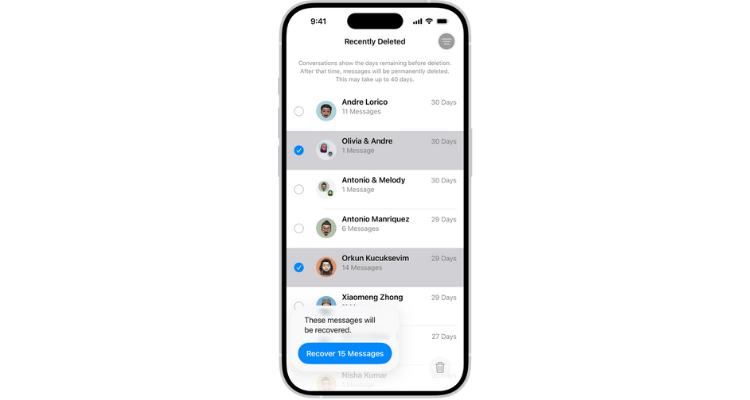
Restoring deleted messages from the iMessage app is easy; you just need to recover them within 30 days of deletion and be on iOS 16 or later. Bear in mind that any messages deleted before updating to iOS 16 will be gone forever:
- Open the iMessages app and tap the 3-lines button above the conversation list
- Press ‘Recently Deleted’ and go to the conversation you want to recover
- Tap ‘Recover’, followed by ‘Recover Messages’
How to recover deleted messages from an iCloud backup
If you desperately need to restore messages and can’t do so via the ‘Recover Messages’ method, you can get messages back with an iCloud backup. Make sure your iPhone’s data is being backed up first, and keep in mind there’s no guarantee that every message will be restored:
- Open the Settings menu and tap your name
- Select ‘iCloud’ and check that the Messages option is toggled on
- Check that your iPhone has been backed up by going to ‘iCloud Backup’
- Make your way back to the Settings menu and select ‘General’
- Scroll down and select ‘Reset’ (it might instead be called ‘Transfer or Reset iPhone’)
- Press ‘Erase all Content and Settings’, then tap ‘Confirm’
a. If you’re prompted to disable Find My, enter your iCloud password - Once your iPhone has finished resetting, follow the prompts to set it back up
- Head to ‘Apps & Data’, select the ‘Restore from iCloud Backup’ option and sign in to iCloud
- Find the ‘Choose Backup’ section and select the backup from before you deleted the messages
How to recover deleted messages from iTunes
Deleted messages can be recovered using iTunes if you’ve previously backed up to a PC or Mac:
- Connect your iPhone to a PC or Mac
- Open iTunes and click on the phone icon
- Go to ‘Summary’ on the left-hand side and click ‘Restore Backup’
How to recover deleted messages using Finder
You can also use the Finder feature on a Mac to located deleted messages:
- Connect your iPhone to a Mac
- Open Finder and click the name of your iPhone in the ‘Locations’ section
- Select ‘Restore Backup’
Conclusion
There are many ways you can get your deleted iPhone messages back. We have a variety of other expert guides to support your iPhone needs, such as moving your old data to a new handset.