
How to play Xbox games on your phone
Advances in streaming technology mean you can easily play Xbox games on your phone from wherever you are. In this guide, we’ll show you how to stream Xbox games to your handset, whether it’s an iPhone or Android device.
You don’t need the fastest phone to stream games, but if you are looking to upgrade your handheld gaming experience, check out our range of affordable contract and SIM-free handsets from brands including Samsung, Google and Apple.
What you’ll need
This is what you’ll need to play Xbox games from your phone:
• A Wi-Fi or data internet connection
• iPhone with iOS version 15.1 or higher
• Android phone with Android 6 or higher
• Xbox One or Xbox Series X/S console (if using Remote Play)
• Microsoft account with an Xbox profile
• Xbox Game Pass subscription (if using Cloud Gaming)
• Xbox controller
• Xbox app
Internet connection
A minimum download speed of 10Mbps is recommended for streaming games to your phone with optimal performance. A 5GHz connection will also help ensure the experience is smooth and helps to produce less lag.
Controller
Some games can be played via a touchscreen interface, without the need for a controller. If you want a more traditional experience, you can connect an Xbox Wireless Controller via Bluetooth.

What phone do I need?
Phones with a large screen and powerful processor are ideal gaming companions. Devices like the iPhone 17 Pro Max, Pixel 10 Pro XL and Galaxy S25 Ultra are designed to handle intense gaming workloads, so take a look through our expert reviews if you want to learn more about each one:
• Apple iPhone 17 Pro Max review
• Google Pixel 10 Pro XL review
• Samsung Galaxy S25 Ultra review
How to use Xbox Remote Play
One way to play Xbox games on your phone is via Xbox Remote Play. This enables you to stream games from your Xbox console to your mobile device, rather than via the Cloud.
- Start by powering up your Xbox console and press the Xbox button on your controller
- Navigate to Profile & system > Settings > Devices & connections > Remote features
- Ensure the ‘Enable remote features’ box is checked
- Within ‘Power options’, select ‘Sleep’
A. Remote Play won’t work if your Xbox console isn’t assigned to Sleep - On your phone, open a browser
- Go to xbox.com/remoteplay
- Select your console and tap ‘Remote play on this device’
- If you want to use an Xbox Wireless Controller, pair it to your phone via Bluetooth

How to use Xbox Cloud Gaming
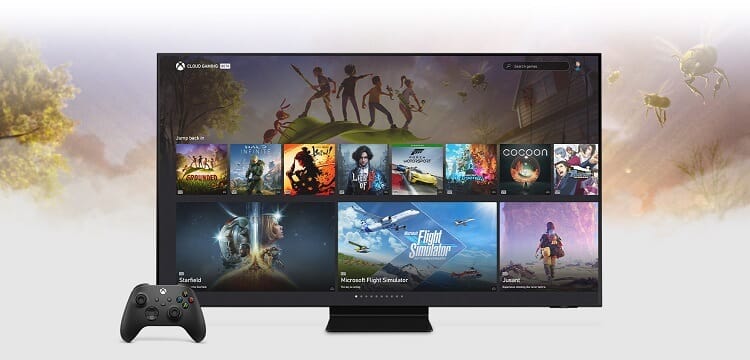
Rather than stream directly from your console, you can play select Xbox games on your phone with Xbox Cloud Gaming. As the name suggests, Xbox Cloud Gaming streams games via Cloud technology without the need for a console or installations.
You’ll need an Xbox Game Pass subscription (Essential, Premium or Ultimate) to do this. 5GHz Wi-Fi or a 5G mobile connection will also help provide a more stable experience.
- From your Android device or iPhone, go to xbox.com/play
- Sign in to your Microsoft account
- Select a game to play
- Follow the instructions to start streaming your game
Conclusion
Once you’ve followed these steps for Remote Play or Xbox Cloud Gaming, you can enjoy your favourite Xbox games directly from your smartphone. If you’re wondering what’s needed from a gaming phone to get the optimal experience, we have a handy guide to help you out.
Xbox mobile gaming FAQs
Can you play Xbox games on mobile without a console?
Yes, Xbox Cloud Gaming enables you to play games on your smartphone without needing a console.
Is Xbox Remote Play free?
Aside from the cost of the console and games, Xbox Remote Play doesn’t require an additional subscription to play from your phone.
Is it possible to use a phone as an Xbox controller?
Some games do support touch controls on your phone, instead of a separate controller. Check the game’s details on the Xbox app or website before streaming if you’re unsure.