
How to Use Emergency SOS Features on Android
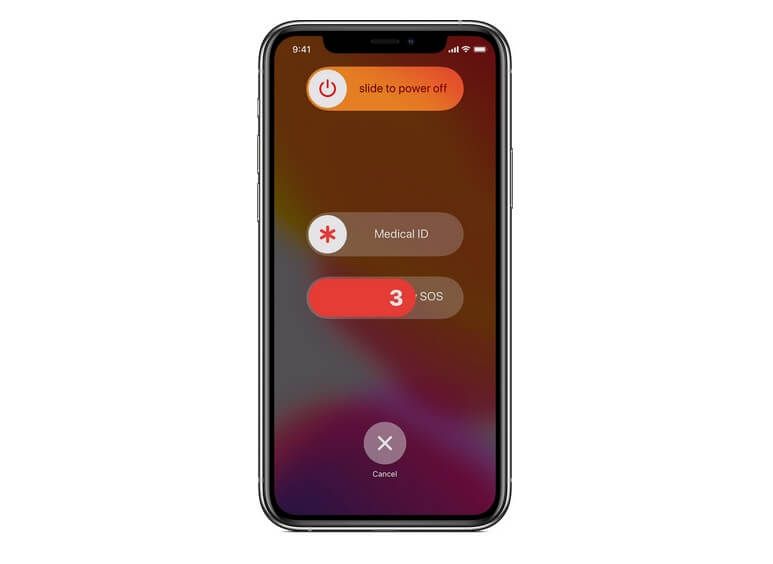
If you find yourself in unexpected danger or in need of medical assistance, your smartphone can help you to stay safe. The Emergency SOS Android features can be set up to share your live location and provide medical information to first responders.
Read on as we guide you through the emergency contact setup process for your Android mobile.
What is the Emergency SOS feature?
Emergency SOS enables rapid contact with the emergency services at times of need. It is a potentially life-saving feature for situations where you may be injured, panicked, or unable to unlock your phone and dial normally.
You can make the SOS when time is of the essence, letting trusted contacts know your live location. You can also set up the sharing of vital medical information, alerting first responders to your:
● Allergies
● Blood type
● Existing medical conditions
● Emergency contact details
Other emergency SOS features include:
● Sending automatic notifications or texts to trusted contacts
● Sharing Medical ID and emergency information from the lock screen
● Emergency sound recordings and alarms
Setting up Emergency SOS on Android
The Emergency SOS setup process will vary, depending on the device that you’re using:
• Samsung users will find the “Safety and emergency” or “Emergency SOS” menu in Settings, with options for quick button presses and message alerts.
• Google Pixel features a “Safety & emergency” and Personal Safety app for Emergency SOS and crash detection.
• Xiaomi, OnePlus, and other alternatives have similar SOS features under “Security & emergency”, “Safety”, or “Additional settings”, with slightly different naming.
Whichever Android device you own, you should see the emergency call option (or similar) after tapping or swiping the opening screen. This will give you the option of phoning the police, ambulance, fire department, or coast guard on 112 or 999.
There may also be the option of phoning one of your emergency contacts, without having to enter your passcode.
To set up the emergency SOS, you will need to:
● Open the settings on your Android phone
● Choose one of the following options
○ Safety & emergency
○ Emergency SOS
○ Security & emergency
○ Personal Safety (common on Google Pixel devices)
If none of these options show up, then go into the settings and search for “Emergency SOS” or “Safety”.
On most Android phones, the SOS can be activated by pressing the power button 5 times in quick succession. Alternatively, you might have to press and hold the power and volume buttons together for a few seconds.
Many Android phones also give you the option of switching on an SOS message, ensuring that your emergency contacts are texted your current location in an emergency. You’ll typically require Android 12 or later, though availability varies by manufacturer. It won’t work when the Battery Saver or Airplane modes are on, either.
Adding your emergency contacts
You can add your emergency contacts via the Safety & emergency screen in the Settings menu. These can be your close friends, family members, colleagues, and others who you feel you can trust.
It’s best to add two or three contacts for the greatest reassurance that somebody will be alerted to your emergency situation.
You can enable location sharing as follows:
● Go to the Emergency & safety menu and select an option such as Share Information with Emergency Contacts
● Turn on the live location updates for sharing with your trusted contacts
● Enable the location permissions for accurate GPS tracking when an SOS is triggered
Some phones also enable you to set the time over which your location will be shared, together with your remaining battery percentage. Additional features include the recording of emergency video or taking pictures of your immediate location for sharing.
Testing the Emergency SOS feature
Using the Android Emergency SOS feature, you can make sure that alerts will be made without accidentally calling 999.
Again, depending on the device, you may have to quickly press the power button in quick succession to trigger the call countdown before cancelling.
You should also check to see whether emergency messages have been sent to your trusted contacts and let them know that you aren’t in need of help.
Emergency SOS tips
Accidental emergency service calls can be avoided by disabling the automatic dialing shortcuts and turning off features such as “Call with Hold and Release" on your Android phone.
Emergency SOS features generally rely on a mobile signal, while Wi-Fi calling and mobile data may be needed for live location sharing. However, you may be able to contact the emergency services through alternative networks in some situations.
Remember to consult the user’s manual if you’re in any doubt about the emergency SOS settings for your phone.
Using Google’s Personal Safety app
Google’s Personal Safety app can be downloaded for added reassurance in an emergency. Similar to the built-in Emergency SOS feature, this app enables rapid contact with the emergency services and the sharing of vital personal details with trusted contacts. It also comes with a timer that can be activated for tracking, if you’re going to be walking through unfamiliar areas and late at night.
Available on Pixel devices, there’s also a car crash detection feature which detects any severe car crashes and triggers a call to the emergency services if you are unresponsive.
Check whether you can download the app via the Google Play store, and refer to the official guide for a full walkthrough of the daily safety setups.
Conclusion
Easy to set up, the Emergency SOS and similar features can significantly speed up your contact with the emergency services and trusted contacts, sharing vital details when it matters most.
iPhone handsets come equipped with similar SOS features, which you can learn about in our dedicated guide.