
How to Take a Screenshot on an iPhone
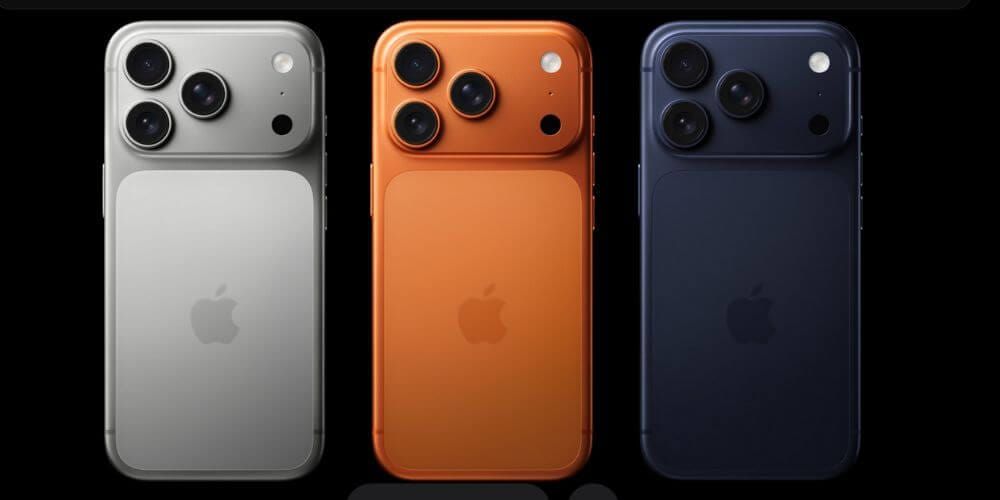
If you’re having technical issues with your iPhone or want to share your screen with a friend, being able to save a screenshot can be extremely useful. Our experts will take you through how this is done on iOS 26 in a few easy steps.
Looking to pick up a new iPhone, too? Take a look through our Apple collection.
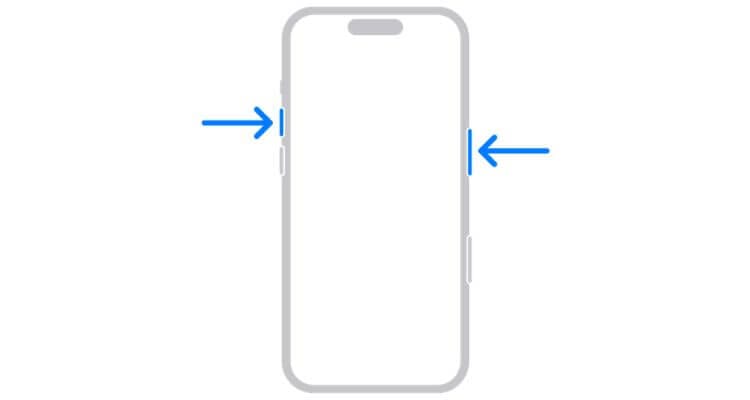
Taking a screenshot on Face ID iPhones
If your iPhone supports Face ID (iPhone X and later), you can take a screenshot by pressing the Side and Volume Up buttons simultaneously.
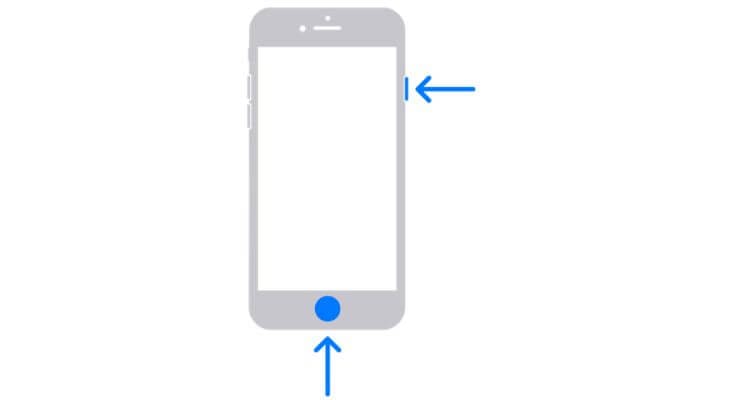
Taking a screenshot on Touch ID iPhones
On iPhones with Touch ID (iPhone 5s to iPhone SE 3rd Gen), capture a screenshot by pressing the Side and Home buttons at the same time.
Taking a full-page screenshot
If you need to take a screenshot of an entire page in Safari, you can do this on Face ID and Touch ID handsets:
- Face ID iPhones
Press the Side and Volume Up buttons - Touch ID iPhones
Press the Side and Home buttons
Once you’ve done one of the above, tap Full Page. You can then crop the screenshot, save as a photo or PDF, or cancel it altogether.
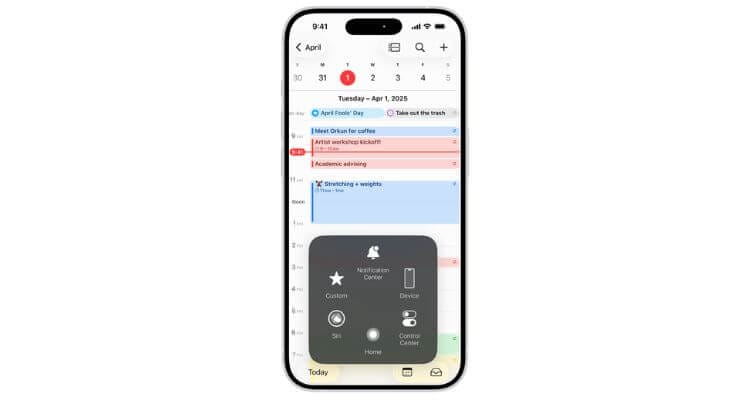
AssistiveTouch
AssistiveTouch can be used to take a screenshot if you can’t access the side buttons. Instead, you can create a gesture that performs the same functionality:
- Open the Settings menu and go to Accessibility > Touch > AssistiveTouch
- Toggle ‘AssistiveTouch’ to turn it on
- Tap ‘Create New Gesture’ to assign a screen gesture to the Screenshot feature
Back tap
The back of an iPhone can be tapped to take a screenshot:
- Open the Settings menu and go to Accessibility > Touch > Back Tap
- Select ‘Double Tap’ or ‘Triple Tap’ and assign it to an action
Siri
While connected to the internet, you can ask Siri to take a screenshot of the screen. This is a great hands-free option if you can’t use the Side buttons or gesture features; simply say “Siri, take a screenshot”.
Conclusion
With these simple steps, you can easily take a screenshot on most iPhones. If you’re thinking of purchasing a new iPhone and aren’t sure what to do with your old data, check out our iPhone-to-iPhone and Android-to-iPhone transfer guides.