
How to transfer contacts from Android to iPhone
You may be considering a switch to Apple’s iPhone series, but what do you do about all your Android contacts? There are several ways you can overcome this obstacle, and make switching to your new iPhone even easier.
In this guide, we’ll explain how to transfer contacts from Android to iPhone, so you can preserve the contact numbers you’ve collected over the years.
If you’re also looking for inspiration for your iPhone switch, our diverse range of Apple handsets has you in good hands.
Option 1 – Transfer using ‘Move to iOS’
Apple has a dedicated app for transferring contacts and other data between devices named ‘Move to iOS’. This will transfer not just contact information, but also messages, photos, bookmarks and accounts.
It’s important to note that this method can only be used on a new iPhone; if you’re wanting to move contacts to an iPhone that’s already set up, use one of the other methods below.
You’ll need to download the ‘Move to iOS’ app on your Android phone (it must be running Android 4 or higher).
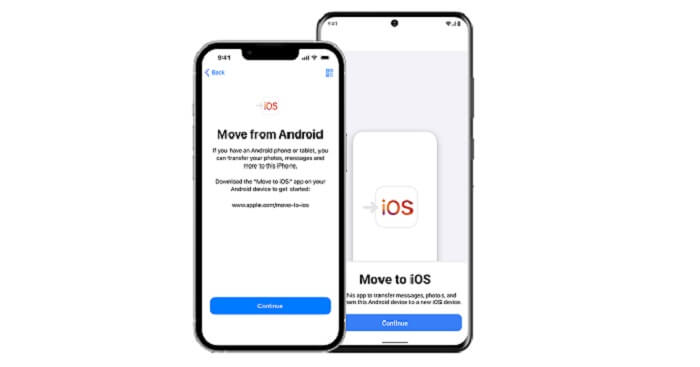
- On your new iPhone, begin the setup process until you reach ‘Apps & Data’
- From here, select ‘Move Data from Android.’ A security code will appear on the screen
- Back on your Android device, open the ‘Move to iOS’ app and enter this code when prompted
- Select the data you want to move across (make sure ‘Contacts’ is chosen)
- Your contacts and their info will now transfer across to your new iPhone; this process can take between 10-20 minutes to complete
Option 2 – Transfer via the SIM card
You can also transfer contact details across to an iPhone via the SIM card from your Android device.
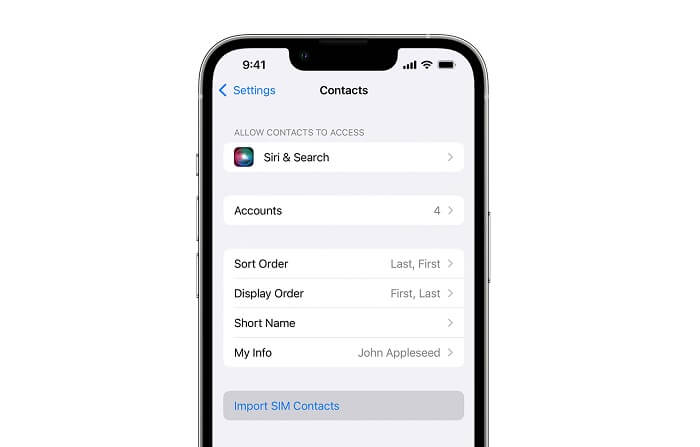
- Back-up your contacts to the SIM card by opening the ‘Contacts’ menu on your Android phone, pressing the three dots, and selecting ‘Manage contacts’ > ‘Import or export contacts’
- Tap ‘Export’, and once that’s finished, move the SIM card to your iPhone
a. If your new iPhone has an eSIM, instead of a physical SIM card, you may need a QR code to transfer contacts across. Contact your mobile provider for further support on this - Go to your iPhone’s settings menu and select ‘Contacts’ > ‘Import SIM contacts’
Option 3 – Transfer via your Google account
Your Google account is another way you can transfer contacts from Android to iPhone. This method uses the Cloud to store your contacts and move them across; all you need is an internet connection.
- On your Android device, go to ‘Settings’ > ‘Google’ > ‘Backup’
- Toggle ‘Contacts’ by tapping it (if it’s already toggled, you can skip this part)
- Move over to your iPhone, and complete setup if it hasn’t been done already
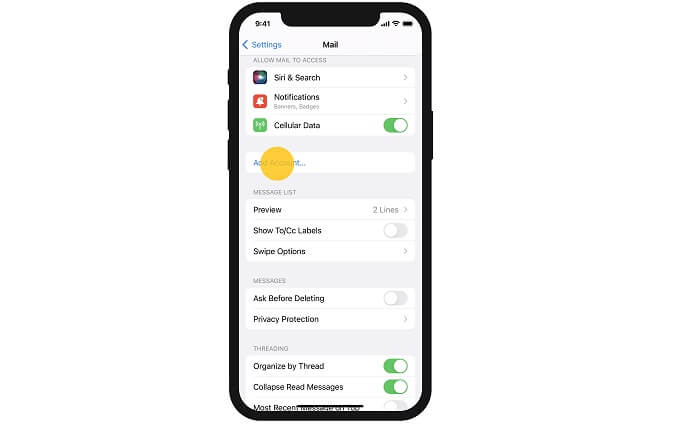
- Once setup is finished, head to ‘Settings’ > ‘Mail’ > ‘Accounts’ > ‘Add Account’
- Enter your Gmail information to sync your contacts from the Cloud
Option 4 – Transfer using a VCF file
A VCF (Virtual Card Format) file stores contact information, which can then be transferred around destinations e.g., a new phone.
This method requires a little more knowhow, but it’s another useful way to transfer contacts from Android to iPhone, without the need for cables and other equipment.
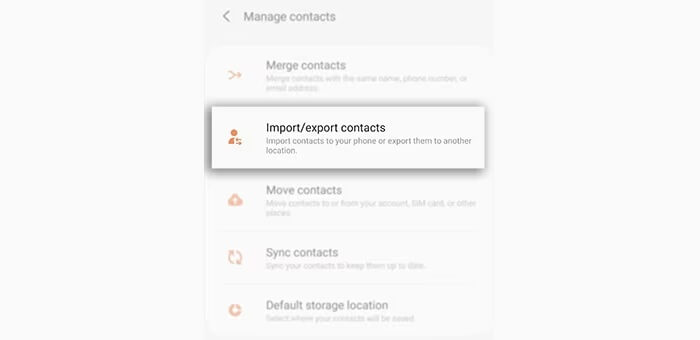
- Open the ‘Contacts’ app on your Android phone
- Tap the three dots and navigate to the ‘Export’ option (this may differ depending on your particular phone model)
- Select ‘Internal storage’ when asked to choose a destination
- Your phone will now create a VCF file. Find it by searching via the Android file browser (you can also search for ‘My Files’ on your phone’s apps menu)
- Tap the VCF file and select ‘Share’. When prompted, choose ‘Email’ as the share option, and email it to your own address
- On your iPhone, access the email account you just shared the VCF file too, and download the file
- When opening the VCF file, your iPhone will ask if you wish to ‘Add all contacts’. Follow the prompts to import the contact information
Option 5 – Transfer via Bluetooth
Transferring contacts from Android to iPhone via Bluetooth is possible, but it will depend on your Android phone model as to whether this option is available.
Bluetooth may also limit how many contacts you can transfer at a time, so this method is most suitable for anyone who has a fairly small contact list.
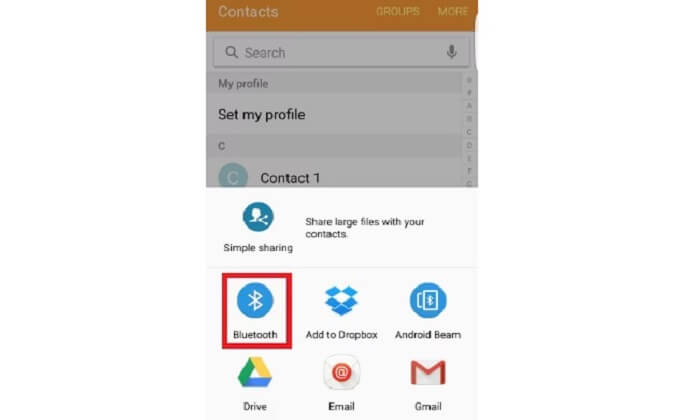
- Go to your Android phone’s Contacts app
- Tap a number, and select the three dots or ‘Info’ option (usually indicated by a lower case ‘i’)
- Choose ‘Share’ and tap ‘Bluetooth’ if available
- Find your iPhone in the list of devices you can share with
Option 6 – Using a third-party app or software
Some third-party software is available that you can use to move contacts from Android to iPhone, such as Contact Transfer or Droid Transfer. All you have to do is connect your Android device to your PC or laptop and follow the instructions to back up contacts. Once that’s done, log in to iTunes and sync the contacts to your iPhone.
With your existing contacts and their numbers moved across, you can continue using your new iPhone to its full potential. You may also need to transfer data in other instances, such as when moving between Android devices or another iPhone handset. Our in-depth guides go through this process step-by-step.
FAQs
Can I transfer contacts from Android to iPhone without a SIM card?
Absolutely! Moving contacts across via the Cloud is one of the best ways to do this without a SIM card, and it means your contacts are backed up for good measure.
Google accounts include this functionality; simply log into Gmail on your iPhone and add an account to start syncing contacts.
Why didn't my contacts transfer from Android to iPhone?
If you find that your contacts haven’t moved across, try following the steps again. In the case of transferring via your Google account, check that ‘Contacts’ is switched on by going to Settings > Account > Google; after a minute or two, your contacts should now be synced.