
How to update your iOS 16 lock screen
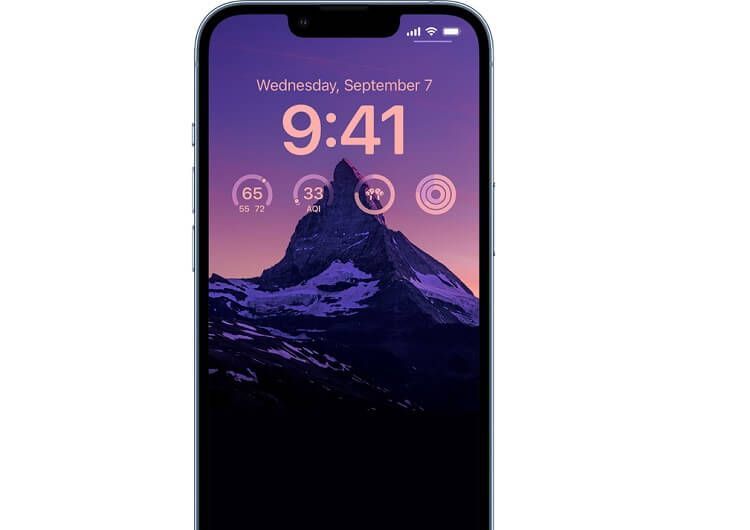
The lock screen on iPhones is something users will see every day but perhaps hasn’t been customised to its full potential. iOS 16 introduced several unique features that significantly expand the ways you can make it your own.
This guide will show you how to update your iOS 16 lock screen, allowing you to add wallpapers, widgets, and more. If you’re looking for an iOS 16-supported phone, we have a wide range of options to choose from, including the iPhone 14, iPhone SE Third Gen, and iPhone 13. For a full list of supported iPhones, take a look at our detailed iOS 16 guide.
Setting a background wallpaper
Images you set as a wallpaper on the lock screen are a lot more customisable on iOS 16. You can change the colour of specific elements to match the style of the background, apply a filter to adjust the tint, and mix up the font to style the lock screen however you like.
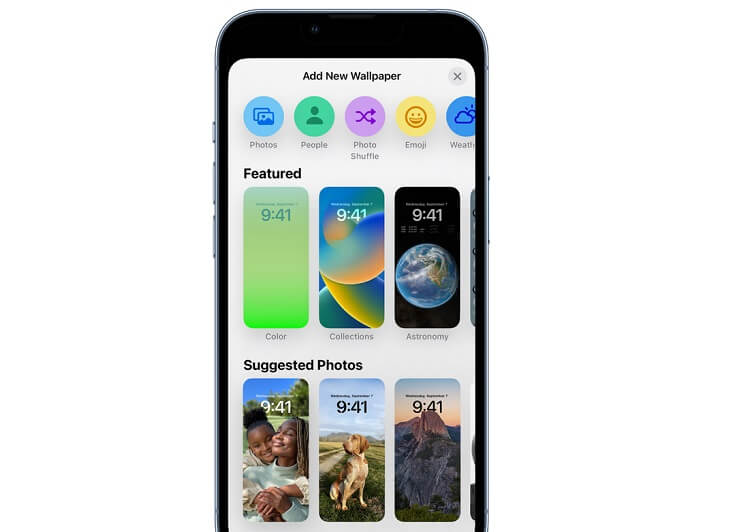
To update the wallpaper:
- Tap Settings >Wallpaper
- Select ‘Add New Wallpaper’
There are multiple options when customising the wallpaper from this screen, including the colour, style, font, and several pre-made dynamic wallpapers.
Adding widgets
Widgets are tools added to the lock and home screens that provide helpful information at a glance. If you like to keep up-to-date with the weather, add the widget and see your local forecast from the lock screen. Like to measure your calorie burn and activity rate? The respective widget can showcase this info without needing to unlock the phone and open an app.
To add widgets:
- Press Settings > Wallpaper
- Scroll to the Widget menu
- Tap the widget to add it to the lock screen or edit the ones already installed
a. You can also do this to remove existing widgets - Press ‘Done’ to confirm your changes
Customising the wallpaper and photos
You can further personalise your iOS 16 lock screen with filters and custom photos, to create a style unique to you.
To add a custom photo:
- Go to Settings > Wallpaper
- Select ‘Add New Wallpaper’
- Tap Photos in the top-left corner of the menu
a. Press the People option to only view photos containing people as the subject - Choose the photo you want to use
To customise the photo:
- Select the photo to be updated
- Swipe right and left to change between different filters, such as Black & White and Duotone
- Pinch the screen to zoom and orientate the image
- Tap the ellipsis (three dots) icon > Perspective Zoom to enable the image to move as you tilt the phone
a. The Depth Effect option will sharpen the subject in the foreground and help it stand out - Select Shuffle Frequency to automatically set your photo to swap between images on your phone
a. From this menu, you can also set how frequently this happens e.g., hourly, daily, or when the phone wakes - Tap ‘Done’ once your settings have been made
Creating lock screen templates
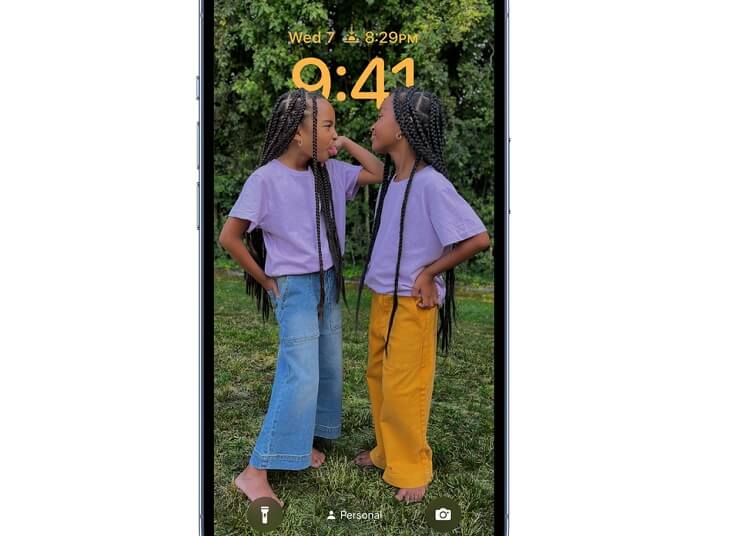
Multiple lock screen styles can be made as templates, which can then be swapped between them, so you don’t have to make frequent changes from scratch.
To swap between styles:
- Swipe down from the Home Screen
- Press and hold on the screen
- Swipe left to view your different lock screen styles
- Tap on the one you want to assign it
Applying a focus
Individual lock screen templates can be assigned a Focus, for example when driving, to ensure the lock screen only displays certain information depending on your circumstances.
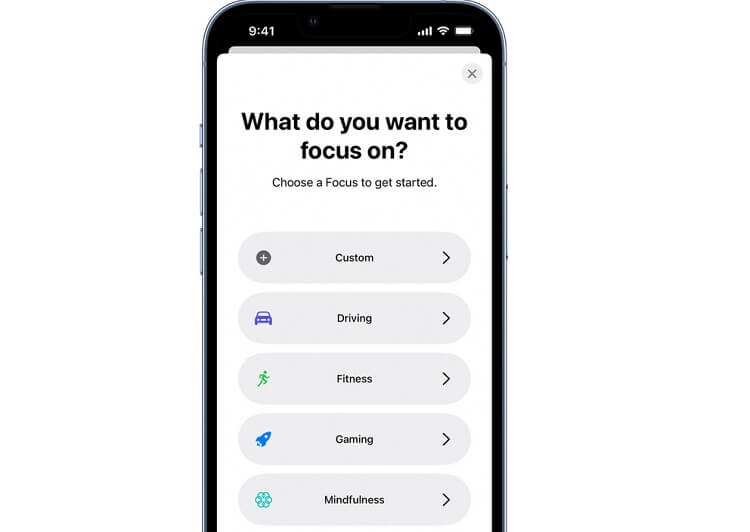
To add a Focus:
- Press and hold on the lock screen
- Tap ‘Focus’ at the bottom of the screen
- Select the Focus based on your situation
iOS 16 is extremely flexible in helping you shape your iPhone to your personal tastes. The iPhone 14 is one of the most powerful devices that supports iOS16. Read our in-depth review to learn everything you need to know about this flagship smartphone