
How to Use Samsung Wireless PowerShare
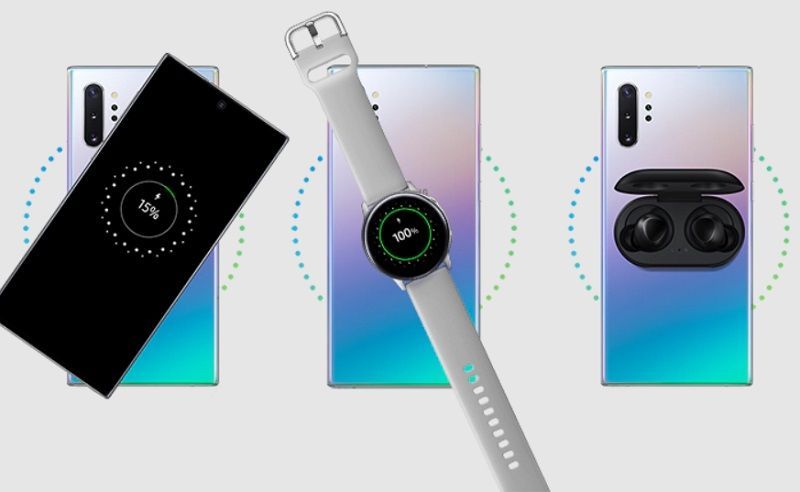
Wireless PowerShare - which debuted on the Galaxy S10 – allows for reverse charging to other Samsung handsets. In this guide, we’ll take you through how to use the Wireless PowerShare feature and highlight compatible phones that support it.
Explore our collection of Samsung smartphones for inspiration on your next purchase.
What is Samsung Wireless PowerShare?
Helping you to get more out of your handset, Wireless PowerShare essentially makes it possible to transfer power from one device to another, all without the need for charging cables. As long as both devices involved are Qi-certified - the industry standard for wireless charging - then you're good to go.
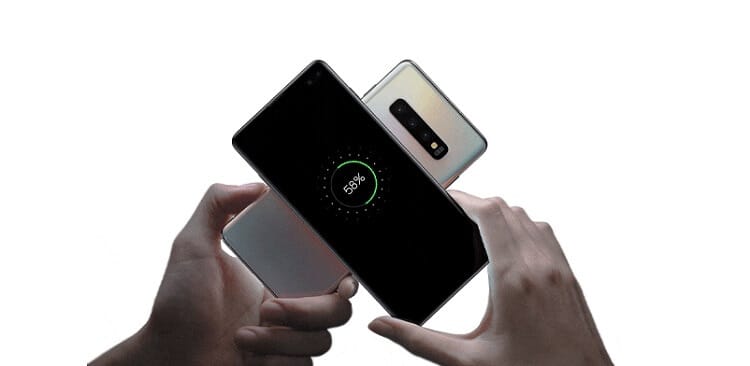
Whether a friend's Samsung is running low on power, or you need to give your own Samsung Galaxy Watch or Samsung Galaxy Buds a boost, it's all possible via Wireless PowerShare. You can transfer power to any Qi-enabled handset, meaning it's possible to share power with devices produced by other manufacturers like Apple or Google. For a smooth, fuss-free transfer, just be sure to double check the design of the second device doesn’t cause any obstruction e.g., its case still allows for wireless charging.
Using Samsung Wireless PowerShare
Making use of Samsung's Wireless PowerShare is really simple. It doesn't matter if you're charging another phone or a device like a smartwatch, the steps listed below will always be the same.
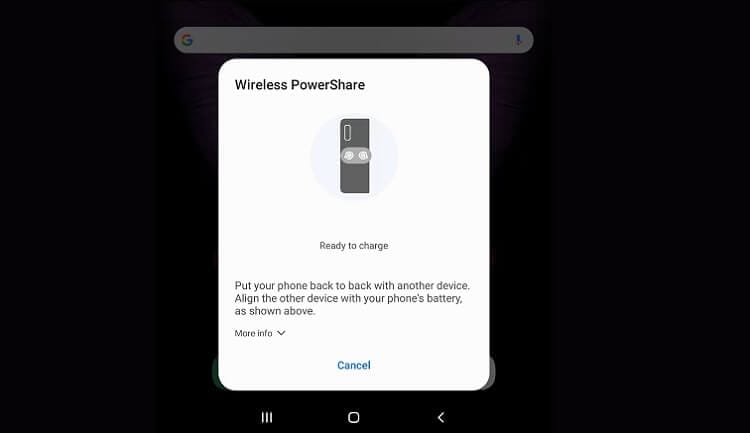
- Open up the notification panel on the Samsung phone that supports Wireless PowerShare. To do this, swipe down from the top of the screen.
- From the notification panel, tap Wireless PowerShare.
- Keep an eye out for a blue flashing light - this indicates that it has successfully been activated.
- Once the blue light has appeared, you can start sharing power. Before you begin, double-check for obstructions; certain phone cases can prevent charging.
- Once obstructions have been removed, place your Samsung and the device you need to charge together. Make sure both devices are back to back.
- A pop-up will appear on your Samsung's screen when a connection has been made.
- If the pop-up doesn't appear, readjust the placement of the second device.
- Once you can see the pop-up, tap OK.
- The blue light on your Samsung should turn red - this indicates that power is being successfully transferred.
- The light will turn off completely when the second device is fully charged. If you're just giving it a boost, you can remove it at any time.
How to use Dual Charging
Did you know that Samsung's Wireless PowerShare also makes it possible to charge your Samsung phone and a second device simultaneously? Known as Dual Charging, this feature can come in useful if you suddenly discover you're running low on power across multiple devices but only have access to your phone charger.
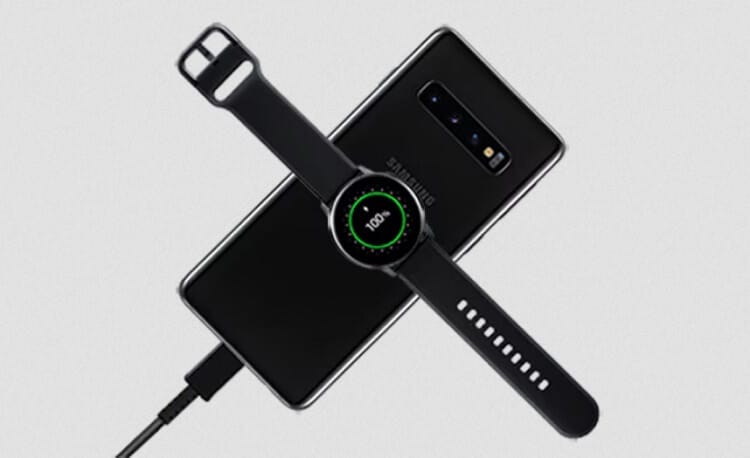
If you follow the steps above for setting up Wireless PowerShare, then plug your Samsung into its regular charger, you can charge both at once.
What Samsung handsets support Wireless PowerShare?
If you want to try Samsung's Wireless PowerShare technology, then you'll need a phone that supports the feature. Luckily, many of Samsung's handsets come with Wireless PowerShare, such as:
• Galaxy S25,S25+, and S25 Ultra
• Galaxy S24, S24+, and S24 Ultra
• Galaxy S23 FE, S23, S23+, and S23 Ultra
• Galaxy S22, S22+, and S22 Ultra
• Galaxy S21 FE, S21, S21+, and S21 Ultra
• Galaxy Note20 5G and Note20 Ultra 5G
• Galaxy Note10, Note10+, and Note10+ 5G
• Galaxy Fold, Z Fold2, Z Fold3, Z Fold4, Z Fold5, Z Fold6 and Z Fold7
• Galaxy Z Flip, Z Flip 5G, Z Flip3, Z Flip4, Z Flip5, Z Flip6 and Z Flip7
• Galaxy S20, S20+, S20 Ultra, and S20 FE
• Galaxy S10e, S10, S10+, and S10 5G
Tips for using Wireless PowerShare
If you find that your devices aren’t sharing power properly, here are some tips to consider:
• Make sure the case has been removed
• Clean the backs of each device to remove any conflicting debris
• Check that the phones are correctly aligned (if the indicator light is red, the position isn’t right)
• Don’t move the devices while charging is taking place
• Ensure your main phone has plenty of battery life before using Wireless PowerShare
Squeeze more battery life from your device and enjoy it for longer with our handy tips guide.