
How to Use iPhone Satellite Connection & Emergency SOS
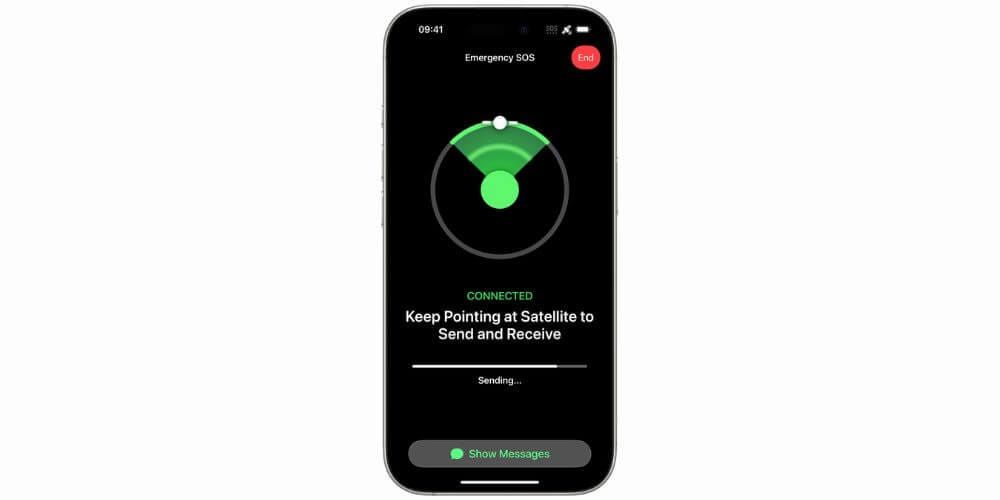
If you've ever lost signal in a remote area, or you want to make sure you can reach help in an emergency, iPhone's satellite connection feature is designed for exactly that. It works without cellular or Wi-Fi coverage, and once you know how to use it, it's straightforward.
In this guide, we'll walk you through how it works and how to set it up, so you're ready if you ever need it. If you're looking to pick up a compatible handset, take a look at our Apple iPhone range.
What is iPhone's satellite connection feature?
Satellite connection lets you use your iPhone when there's no cellular or Wi-Fi coverage. It includes four features:
● Emergency SOS via satellite: text emergency services when you're off the grid
● Roadside Assistance via satellite: contact a roadside assistance provider
● Messages via satellite: send and receive messages via the Messages app
● Find My via satellite: share your location with friends or family
Note that satellite connectivity isn't available on iPhone models purchased in Armenia, Belarus, China mainland, Kyrgyzstan, Kazakhstan, or Russia.
How satellite connection works
Satellites move rapidly and have low bandwidth, so the experience is slower than cellular. In ideal conditions, a message might take around 30 seconds to send. Under trees with light foliage, it could take over a minute. Dense foliage, tall buildings, mountains, or canyons may block the connection entirely.
To connect, you need to be outside with a clear view of the sky and the horizon. Hold your iPhone naturally in your hand; you don't need to hold it up or point it at the sky. If you need to adjust your position, your iPhone will tell you.
Before you go off-grid
Set up your Medical ID
Open the Health app and fill in your Medical ID. When you use Emergency SOS via satellite, this is automatically shared with emergency responders.
Add emergency contacts
In the Health app, add the people you'd want notified in an emergency. They'll receive your location and updates automatically.
Update your iOS
Satellite features require compatible software. Make sure your iPhone is running the latest version of iOS before you travel somewhere without coverage. UK users need iOS 16.2 or later.
Try the demo
It's worth running the Satellite Connection Demo before you actually need it. See the steps below.
How to use the Satellite Connection Demo
You need to be outside with a relatively clear view of the sky to use the demo.
- Swipe down from the top-right corner of your iPhone to open Control Centre
- Tap the Cellular button
- Tap Satellite, then tap Try Demo
- Select Try Connecting to Satellite or Try Emergency SOS
- Follow the on-screen instructions
You can also go directly to the Emergency SOS demo via Settings > Emergency SOS, or the Messages demo via Settings > Apps > Messages, then scroll down to Satellite Connection Demo.
The demo doesn't call emergency services.
How to use Emergency SOS via satellite
- First, try calling your local emergency number (999 or 112 in the UK). Even if your own network isn't available, a call may still connect via another carrier.
- If your call won't connect, tap Emergency Text via Satellite when it appears on screen. You can also open Messages, type your local emergency number in the address field, and tap Emergency Services.
- Tap ‘Report Emergency’.
- Using simple taps, answer the on-screen questions to describe your situation.
- Choose whether to notify your emergency contacts. They'll receive your location, a summary of the emergency, and updates.
- Follow the on-screen instructions to connect to a satellite.
- Once connected, keep following the on-screen prompts. Your iPhone will share your Medical ID, your questionnaire answers, your location including elevation, and your remaining battery life with emergency responders.
If you started a session by accident, don't quit it. Wait until a responder answers and explain that you don't need help.
How to access satellite features via Connection Assistant (iOS 18 and later)
Starting with iOS 18, the Connection Assistant brings all satellite features together in one place when you have no cellular or Wi-Fi coverage.
From Control Centre:
- Swipe down from the top-right corner of your iPhone
- Tap the Cellular button on the right
- Tap Satellite
- Choose the feature you need: Emergency SOS, Messages, Roadside Assistance, or Find My
From Settings:
- Open ‘Settings’
- Tap ‘Satellite’
- Choose the feature you want to use
If you have cellular or Wi-Fi coverage, Satellite won't appear in Settings. Tapping Satellite in Control Centre will open the demo instead.
Which iPhones support satellite connection?
You'll need an iPhone 14 or later, running iOS 16.2 or higher if you're in the UK. The feature is included free for 2 years upon activation of an eligible handset. Availability of Roadside Assistance and Messages via satellite varies by country, too.
Also, satellite connectivity may not work in locations above 62° latitude.
Conclusion
If you need emergency support in a pinch and own an iPhone, these satellite connectivity features can be a literal lifesaver. Take a look at our size comparison guide if you’re interested in changing up your iPhone, too.