
How to Clear Cache & Cookies on an iPhone
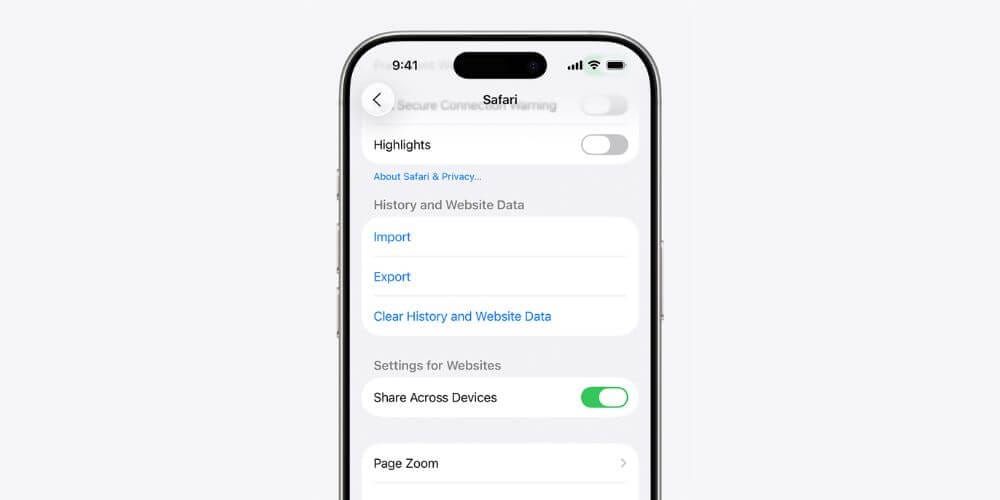
Tidying up your iPhone’s cache is a useful way to manage browsing history and other stored data. Our experts will take you through how to clean up the cache in a few simple steps, as well as clearing any cookies saved on your iPhone.
Thinking about changing up your current iPhone, too? Explore our Apple range for some inspiration.
What is the cache on a phone?
The cache is where data is temporarily stored on a phone for faster loading and improved performance. The idea is that your phone can access this data without having to download it again, hence the reduced loading times.
What are cookies on a phone?
If you’ve ever seen the term ‘cookies’ or heard it mentioned, this refers to text files on your phone that contain things like browsing activity and login credentials. Similar to the cache, cookies are a way for devices to fetch information without collecting it a second time.
How do I clear the cache and cookies on an iPhone?
When cleaning the cache on your iPhone, this will also clear any cookies stored on the device. By doing so, it’s possible to improve loading and processing speeds; especially if you haven’t cleared the cache in a while:
- Open the Safari app and tap Bookmarks
- Select the ‘clock’ icon, followed by the three dots
- Tap ‘Clear’
- Within the Clear Timeframe section, select your preferred amount of browsing history to clear and tap Clear History
Clearing the cache on other apps
Apps such as Instagram will store their own data in a separate cache. If you want to clear them, open the app and check the settings menu for a ‘cache clearing’ option.
Alternatively, deleting and reinstalling an app can clear the cache; just make sure your data is backed up so you don’t lose any key account information.
Other ways to clear your iPhone’s cache
There are a few other methods of clearing an iPhone cache, such as:
• Restarting your iPhone – press and hold the Volume Up and Power buttons, then power off the device
• Reset your iPhone – open the Settings menu and go to General > Transfer or Reset iPhone
Conclusion
With these cache-clearing steps, you can help maintain your iPhone’s long-term performance and maintain your privacy, too. If you’re considering upgrading your iPhone but aren’t sure which handset is right for you, we have a size comparison guide that can help you figure it out.
FAQs
Is it better to clear storage or clear cache?
Regularly clearing your iPhone’s cache can help free up some storage space, but if you want to install new apps or store a large number of photos, you’ll likely need to tidy up the internal storage memory as well.
Does clearing my cache delete anything?
Clearing an iPhone cache won’t remove photos, files and the like; it will only delete the temporary files that are saved for loading purposes.
Will I lose my passwords if I clear my cache?
No, you will only lose your saved passwords when clearing any cookies and checking the ‘Passwords’ box when doing so.