
How to Factory Reset & Reboot a Samsung Phone
If you’re thinking of changing up your Samsung phone, you’ll want to make sure all of your personal data is erased from the handset before you hand it over to another user. Resetting your phone to factory settings is simple. Follow our step-by-step guide on how to factory reset a Samsung phone.
What is a factory reset?
A factory reset restores your Samsung phone to its original settings, so all of the personal data you added or apps you have downloaded after purchase will be deleted. If you are preparing your phone for resale, resetting your phone gives you peace of mind that none of your personal data changes hands along with the handset. A factory reset is also useful if you are experiencing glitches or if your screen is freezing.
If you only need to reboot your Samsung phone rather than fully reset it, a simple restart can often fix minor issues caused by third-party apps. Put your phone in safe mode before you reboot. To access safe mode, simply hold down the power button and tap the power off icon, then tap the Safe Mode icon.
How to prepare for a Factory Reset
Before you begin the factory reset process, it is essential that you back up your data. Once you revert to factory settings, there will be no way of retrieving the data, so back up any important files, such as contacts, photos and documents. Charge your phone to at least 50% so that you have enough battery life for the process to complete, and make sure you are connected to Wi-Fi.
Factory Reset via Settings
If your phone is responsive, the simplest way to factory reset your Samsung handset is via your settings.
● Step One: Open the settings app on your Samsung device (it’s the one that looks like a gear icon).
● Step Two: Scroll down to the bottom of the settings menu and select General Management.
● Step Three: In the General Management menu, you’ll see an option to Reset. Click the Reset option.
● Step Four: Click on the Factory Data Reset option.
● Step Five: A warning screen will appear to notify you that this reset will erase all of the data on your Samsung phone. Read this information thoroughly before you click.
● Step Six: When you tap on Reset, the process will begin. You may need to enter a PIN or password to authorise it.
● Step Seven: Tap on Delete All to confirm that you are happy for the data to be erased. The factory reset process will then complete, and you will be greeted with the initial start-up screen.
Factory Reset via Hardware Keys
Can’t turn your phone on? Use this factory reset method if your phone is unresponsive and you are unable to access the settings menu.
● Step One: Ensure your phone is turned off before you begin.
● Step Two: Press and hold the volume up button and power button simultaneously to enter Recovery mode. Once you see the Samsung logo on the screen, release the buttons.
● Step Three: Here you will be shown the Recovery menu. You can navigate it using the volume buttons. Select the option to Wipe Data/Factory Reset.
● Step Four: Confirm this option using the Power button.
● Step Five: The data removal process will begin.
● Step Six: Once the process is complete, you will be directed towards the recovery menu once again. Here you can choose the Reboot System Now option and confirm it using the Power button. Your Samsung phone will now restart.
Factory Reset via SmartThings Find
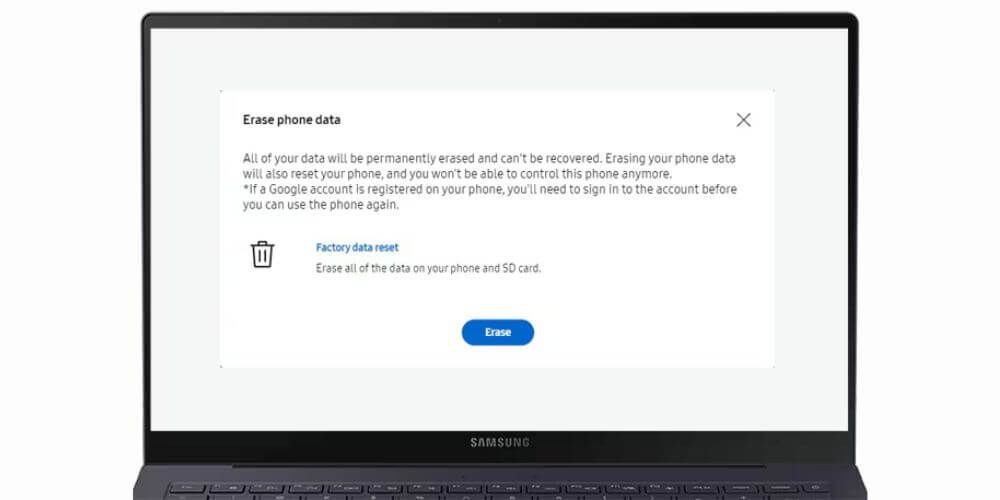
If you don’t have your phone and you want to complete a factory reset remotely, you can do this using SmartThings Find.
Step One: Visit the SmartThings Find website.
Step Two: Sign in to your Samsung Account.
Step Three: From the menu, select the device you want to reset to factory settings.
Step Four: Select the option to Erase Data.
Step Five: Verify your identity via a text or via another Galaxy device.
Step Six: Confirm that you want to erase the data.
Step Seven: Once the factory reset process is complete, you will no longer be able to control the device remotely.
That’s it! Your Samsung phone is now all set for the next user.
Factory Reset troubleshooting
If you are experiencing issues when completing a factory reset, check the following:
● Make sure that your apps and phone software are updated to the latest versions.
● If your phone software and apps are up to date and you are using the latest version but are still experiencing an issue, speak to a Samsung professional for advice.
Factory Reset FAQs
What will happen to my personal data after a factory reset?
All of your personal data will be erased from your Samsung phone after a factory reset, including apps, messages, photos and contacts. Back up your data to avoid losing anything important.
Can my data be recovered by the person who bought my phone?
Data retrieval after a factory reset is extremely unlikely for most users, so the buyer should not be able to access your personal data.
How do I back up my Samsung phone before a factory reset?
You can back up your data manually using external storage devices or to your
your Google Account or Samsung Cloud. Simply go to Settings, click on Backup & Restore and select Back Up Data.
Can I still do a factory reset if my phone won’t turn on?
Yes, if you can’t turn your phone on, you can do a factory reset via recovery mode as shown in the steps above.
What is Google Factory Reset Protection?
Google’s Factory Reset Protection feature can be found on most Android phones. When you complete the factory reset process, you will be asked to enter your Google account password as a safeguarding feature to protect your phone from erasing data without your permission, for example, if it is lost or stolen.
If you want to remove Google Factory Reset Protection before you do the reset process, you will need to remove your Google account from your phone to disable it.